
Getting Started with VuduVations
Version: 1.1
Last Updated: July 30, 2026
Welcome to VuduVations! This guide will help you set up your account and run your first analysis.
Table of Contents
1. Creating Your Account
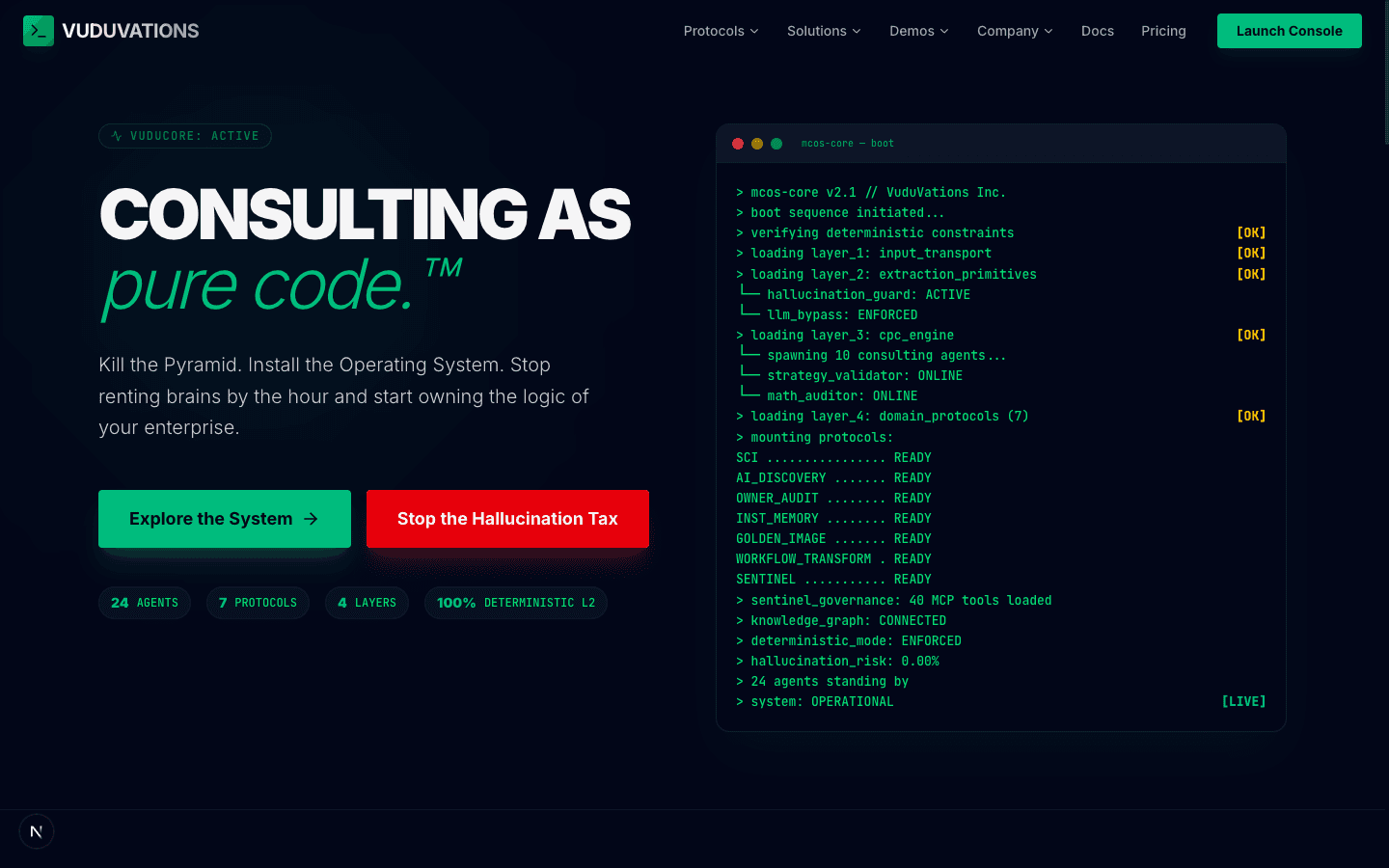
Sign Up Process
Sign In
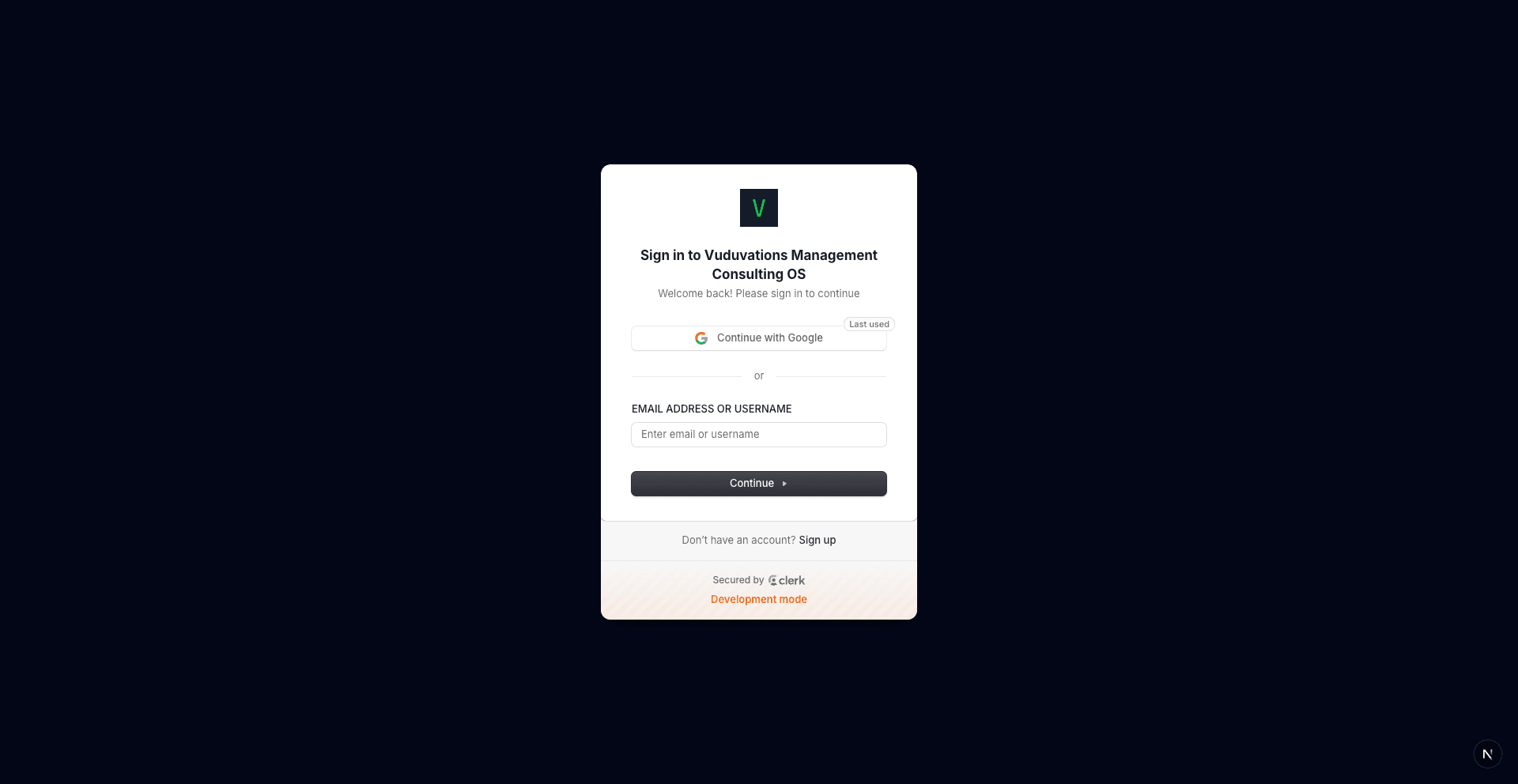
If you already have an account:
Troubleshooting Sign-In Issues
| Issue | Solution |
|---|---|
| "Invalid password" | Click "Forgot password?" to reset |
| No confirmation email | Check spam folder; request new email |
| Google login not working | Try email/password method instead |
| Account locked | Contact [email protected] |
2. Dashboard Overview
After signing in, you'll land on the Run Analysis page — the central hub for all analyses.
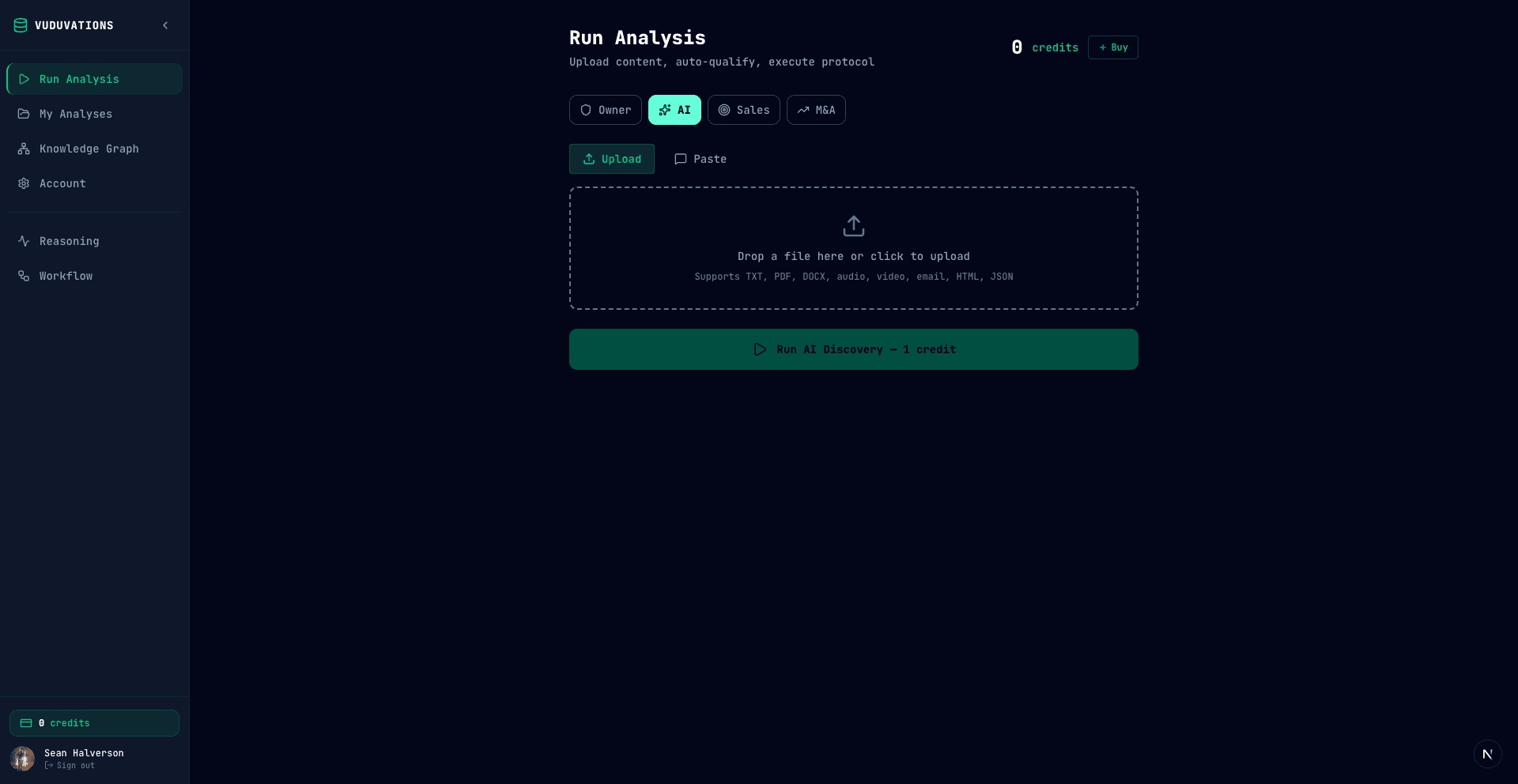
Dashboard Elements
| Element | Description |
|---|---|
| Sidebar | Navigate between all sections of the platform |
| Protocol Tabs | Switch between analysis types (Owner, AI, Sales, M&A) |
| Upload / Paste | Input area for your files or text |
| Credit Balance | Your current credit count (top-right corner) |
| Run Button | Execute the selected protocol (shows credit cost) |
Sidebar Navigation
| Menu Item | What It Does |
|---|---|
| Run Analysis | Upload content and run a protocol |
| My Analyses | View all past analyses and results |
| Knowledge Graph | Visual knowledge graph (Knowledge Graph-enabled workspaces) |
| Account | Billing, credits, and account settings |
| Reasoning | Advanced reasoning analysis |
| Workflow | Workflow transformation analysis |
Protocol Selection
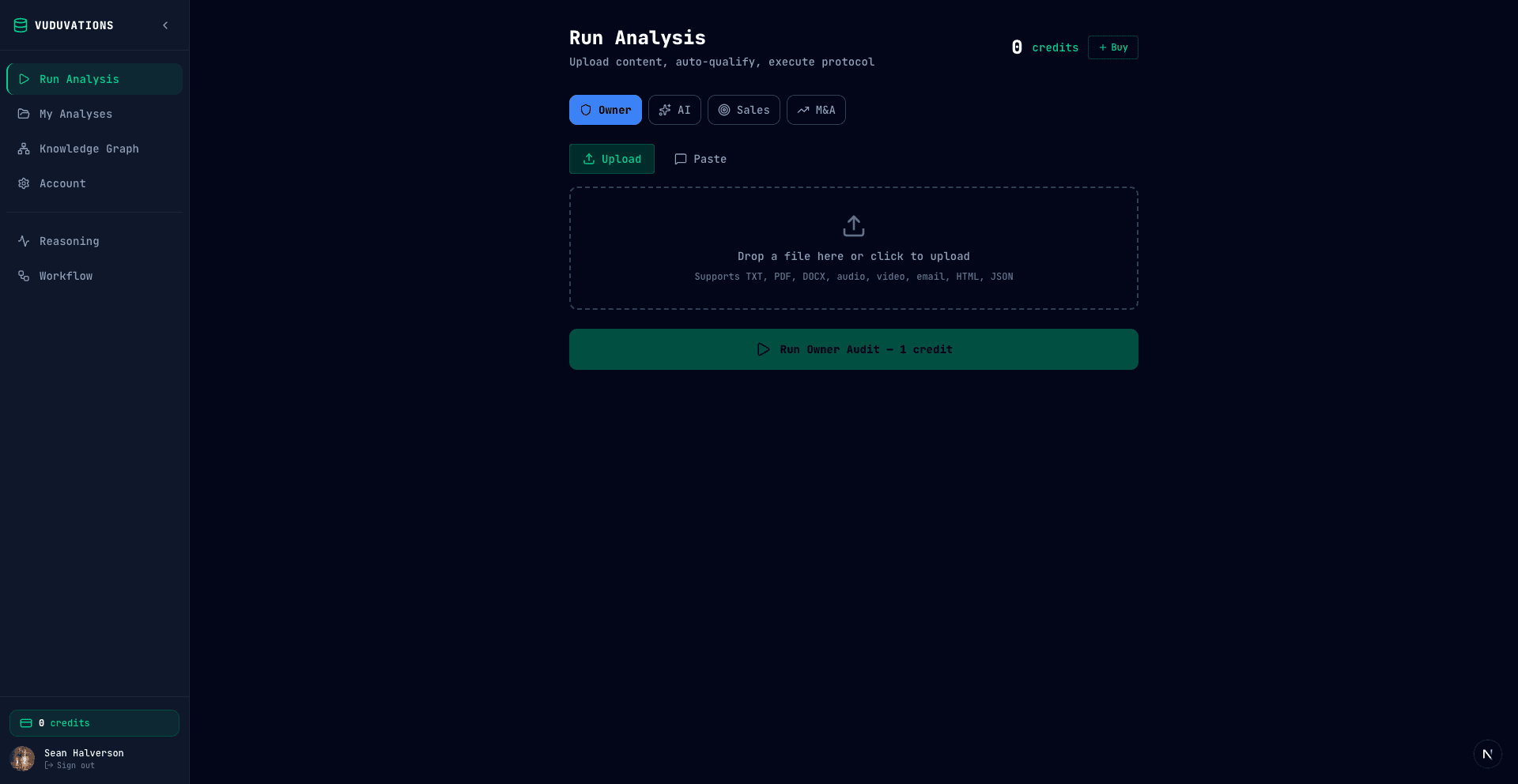
From the Run Analysis page, select a protocol using the tabs at the top:
| Protocol | Best For |
|---|---|
| Owner | Exit planning, key person risk assessment |
| AI | Finding AI and automation opportunities |
| Sales | Sales call analysis and deal intelligence |
| M&A | Due diligence on acquisition targets |
Note: Reasoning and Workflow protocols are accessed from the sidebar rather than the protocol tabs.
Click a protocol tab, then upload your content to get started.
3. Understanding Credits
What Are Credits?
Credits are the currency you use to run analyses on VuduVations. Each analysis consumes 1 credit, regardless of which protocol you use.
Credit Rules
| Rule | Details |
|---|---|
| Cost per analysis | 1 credit (all protocols) |
| Expiration | 90 days from purchase |
| Usage order | FIFO (oldest credits used first) |
| Refunds | Credits are non-refundable |
Checking Your Balance
Your credit balance is displayed in multiple locations:
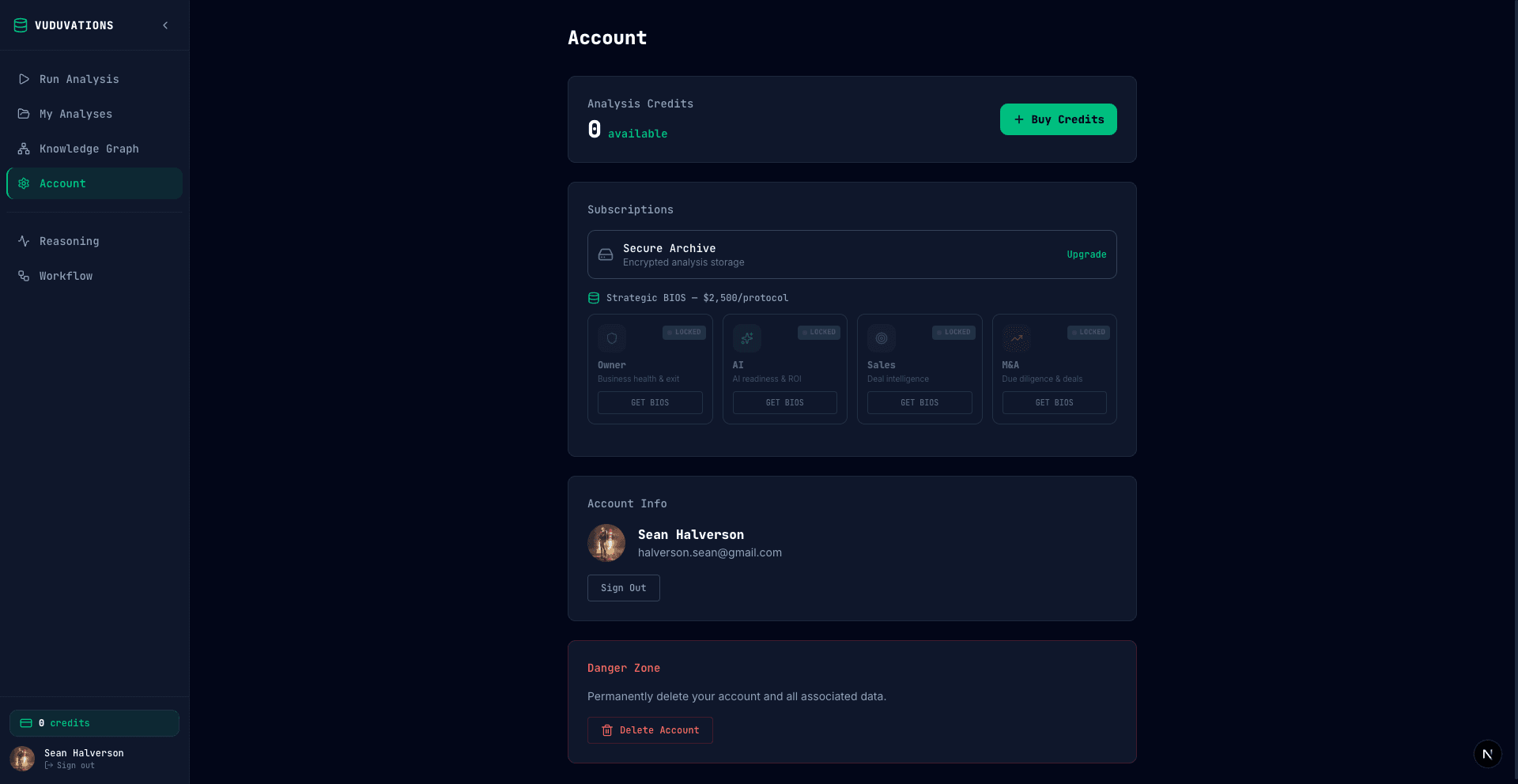
Credit Expiration
Credits expire 90 days after purchase to encourage active use. To check your credits:
Tip: The system automatically uses your oldest credits first (FIFO), so credits closest to expiration are consumed before newer ones.
4. Purchasing Credits
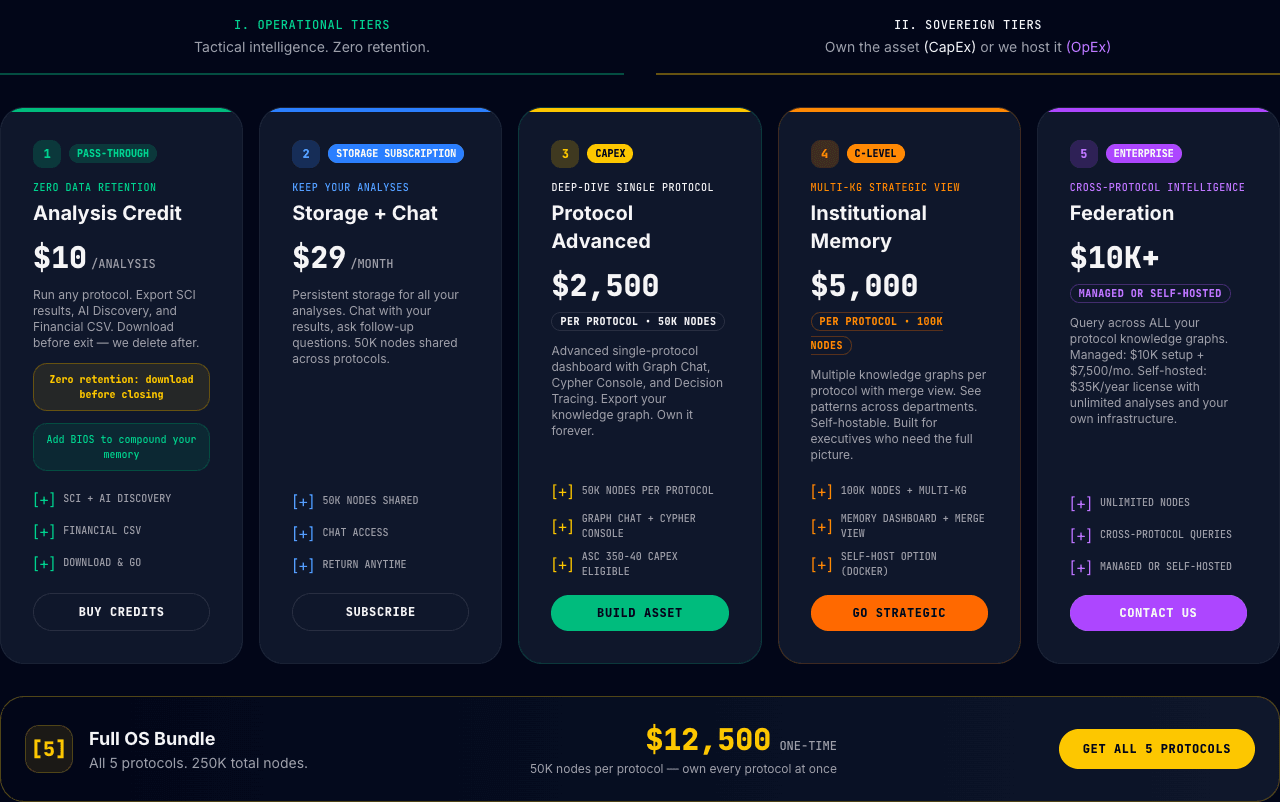
Credit Pricing
Each analysis on an open protocol costs $25 (1 credit). M&A Diligence in
two-company deal mode costs $50 (2 credits) — it runs the analysis core once
per company. Volume pricing and advanced tiers are arranged directly with our team.
| Option | Price | How |
|---|---|---|
| Single analysis | $25 per run | Buy from the Run Analysis page or Pricing page |
| M&A, two-company deal mode | $50 per run (2 credits) | Same credits — deal mode reserves two |
| Volume / team pricing | Contact us | Email [email protected] |
| Advanced tiers (subscription, institutional memory, enterprise) | Contact us | Email [email protected] |
Note: Pricing shown here reflects the current model. The Pricing page
is always the source of truth for what you can purchase today.
How to Purchase
Payment Methods
We accept:
Receipts & Invoices
After purchase, an email receipt is sent automatically via Stripe.
5. Running Your First Analysis
Let's walk through running your first analysis step by step.
Step 1: Choose Your Protocol
From the Run Analysis page, click the protocol tab that matches your needs:
| If you want to... | Select this tab |
|---|---|
| Assess exit readiness / key person risk | Owner |
| Find AI/automation opportunities | AI |
| Analyze sales calls | Sales |
| Evaluate an acquisition target | M&A |
Step 2: Prepare Your Input
Each protocol accepts different input types:
Supported File Types:
| Type | Formats | Max Size |
|---|---|---|
| Audio | MP3, WAV, M4A, OGG, FLAC | 50 MB |
| Video | MP4, MOV, WEBM, AVI | 50 MB |
| Documents | PDF, DOCX, TXT, HTML | 10 MB |
| Data | JSON, CSV | 10 MB |
Or paste text directly (minimum 100 characters)
MCOS analyzes the source you provide directly — there's no data store to build or populate first, so analysis starts on the transcript or document you already have.
Tip: For best results, use transcripts of 30-60 minute conversations. See protocol-specific guides for ideal input recommendations.
Step 3: Upload or Paste
Option A: Upload a file
Option B: Paste text
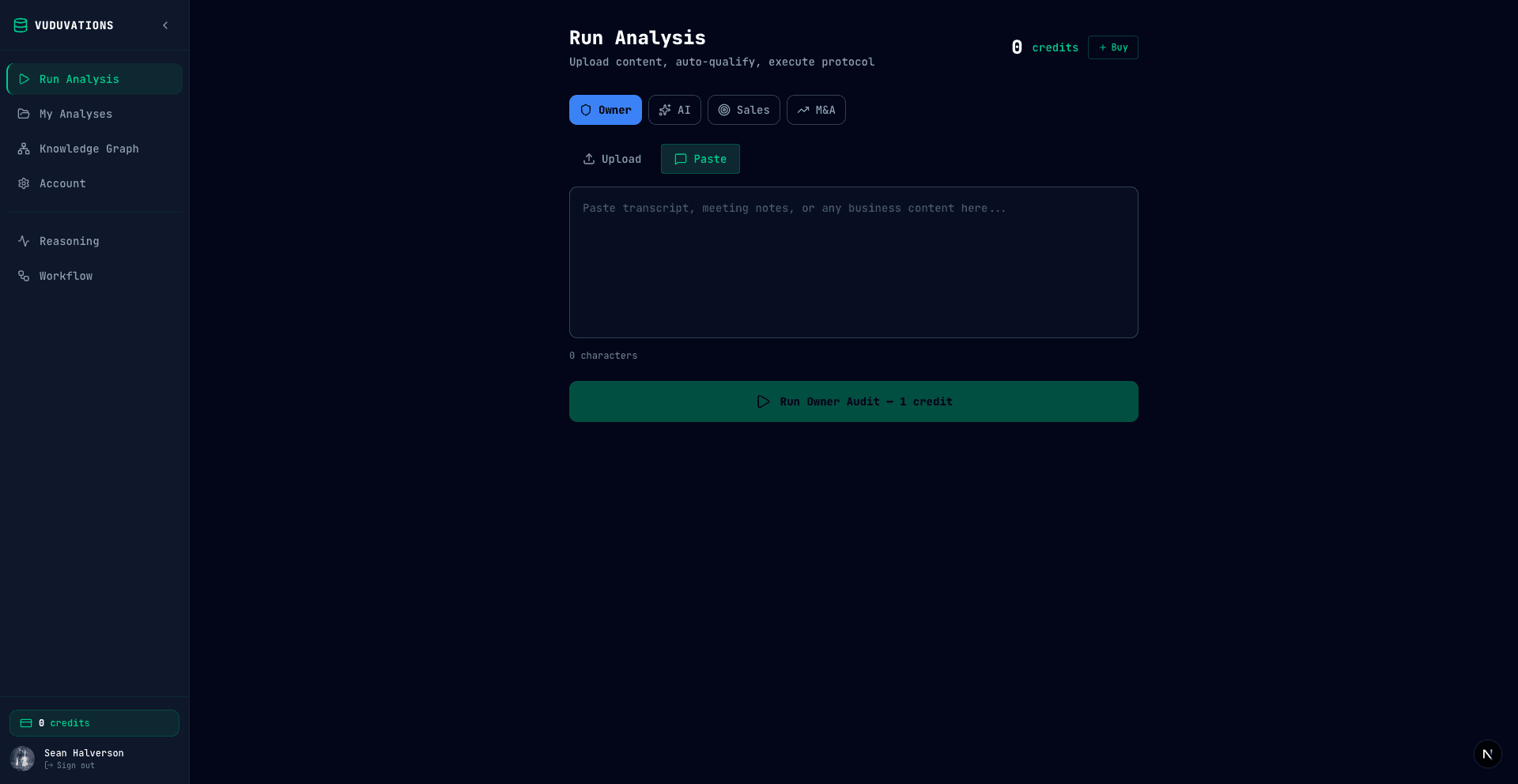
Step 4: Run Your Analysis
Step 5: Wait for Processing
Analysis typically takes 1-3 minutes depending on input size. You'll see a status panel tracking progress through each processing stage (PREPROC, EXTRACT, MAPPER, ANALYZE, SYNTH).
Note: You can navigate away — you'll be notified when your analysis is complete.
Step 6: View Results
When complete, you'll be taken to your results dashboard automatically. Your dashboard will show protocol-specific scores, extracted data, and actionable insights. For detailed walkthroughs of each results dashboard, see the protocol guides:
6. Exporting & Sharing
Export Options
You can export results from two places:
From the Results Page (top-bar buttons):
| Button | What You Get |
|---|---|
| Formatted PDF report | |
| CSV | Data tables as CSV |
| Console | Cypher queries over your knowledge graph (Knowledge Graph-enabled workspaces) |
From My Analyses (action links on each card):
| Action | What It Does |
|---|---|
| View | Open the full results dashboard |
| Download PDF report directly | |
| CSV | Download CSV data directly |
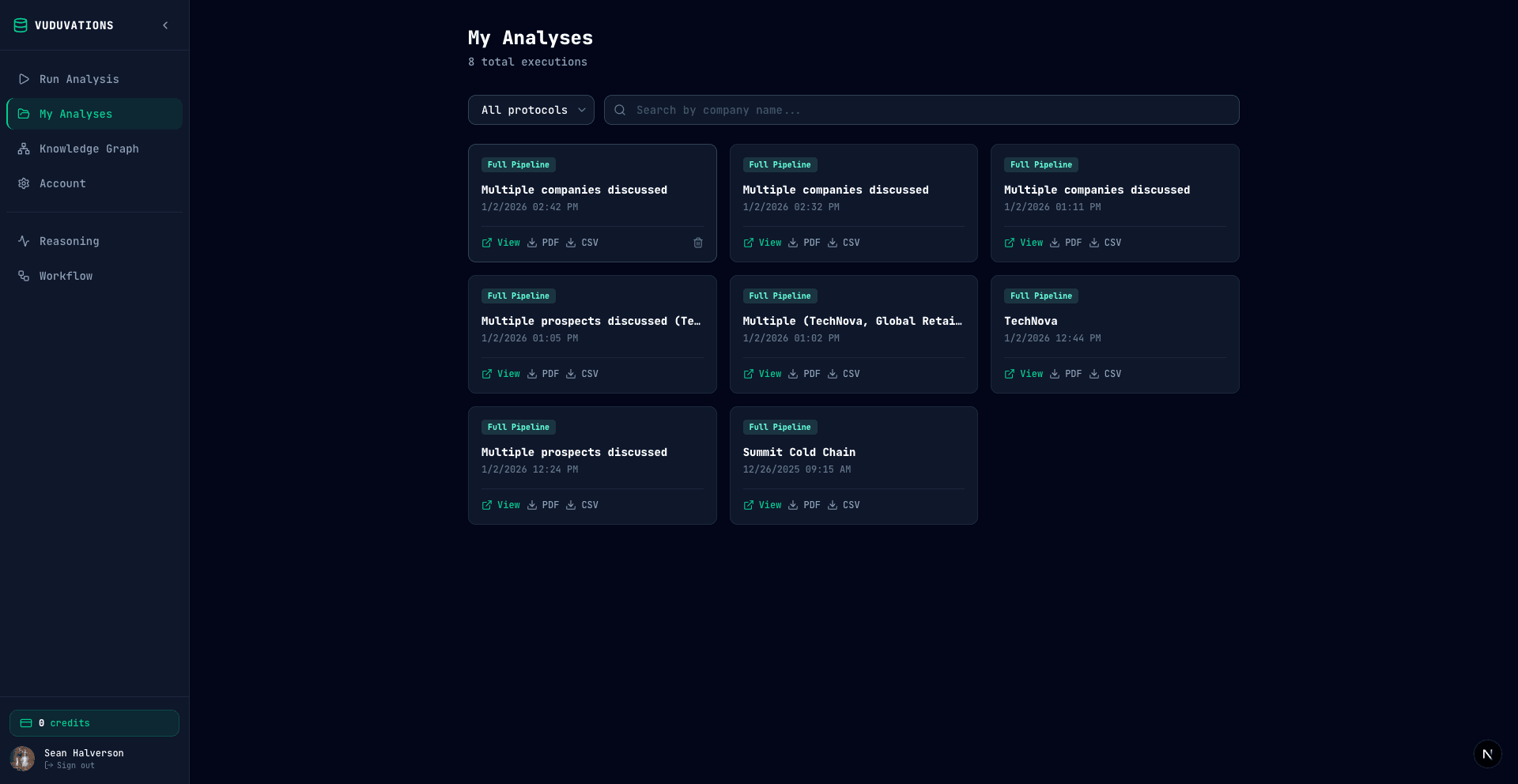
Finding Past Analyses
Long-Term Storage
Want to keep results long-term with persistent, encrypted storage and access to
your full analysis history? Ask us about our storage tier — email
[email protected] and we'll walk you through the options available today.
7. Account Settings
Accessing Your Account
Click Account in the sidebar to view your account page.
Account Sections
| Section | What It Shows |
|---|---|
| Analysis Credits | Current credit balance with "+ Buy Credits" button |
| Subscriptions | Active subscriptions (Secure Archive, Institutional Memory, Graph Convergence) |
| Account Info | Your name, email, and Sign Out button |
Institutional Memory (Knowledge Graph)
Institutional Memory turns your accumulated analyses into an interactive knowledge graph:
Institutional Memory is arranged with our team — email [email protected] or use the
Pricing page to get in touch.
8. Getting Help
In-App Help
Documentation
Contact Support
| Method | Details |
|---|---|
| [email protected] | |
| Response Time | Within 24 hours (business days) |
Reporting Issues
If something isn't working:
Quick Reference Card
Credit Costs
Supported Inputs
Key Links
Need help? Contact [email protected].